> ## Documentation Index
> Fetch the complete documentation index at: https://docs.nodemaven.com/llms.txt
> Use this file to discover all available pages before exploring further.
# Verify your proxy's status with the curl command
> Use curl to confirm a proxy works, check the exit IP, test authentication, and read the common error codes - all from one terminal window.
The curl command is an essential tool for anyone using proxies. It lets you quickly verify that your proxy server works, check your public IP, test authentication, and diagnose errors - all from a single terminal window.
## Build the command
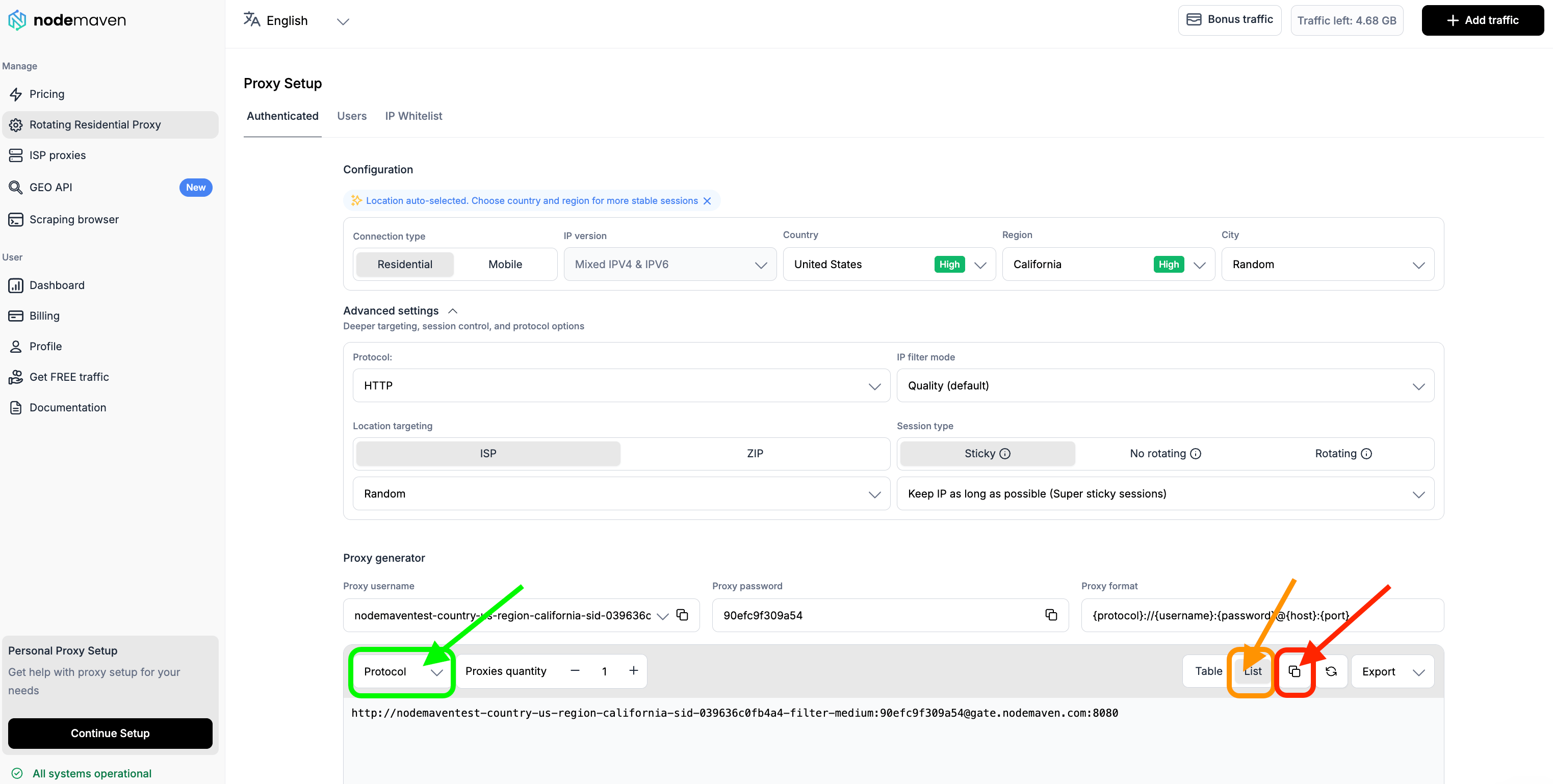
To check a proxy with curl, use the protocol output format shown in the dashboard:
Once you have your proxy, build the command line.
 ```bash HTTP theme={null}
curl -x http://USERNAME:PASSWORD@gate.nodemaven.com:8080 http://ip-api.com -v
```
```bash SOCKS5 theme={null}
curl -x socks5://USERNAME:PASSWORD@gate.nodemaven.com:1080 http://ip-api.com -v
```
With a real username, which carries your targeting parameters:
```bash HTTP theme={null}
curl -x http://TEST__USER-country-any-sid-a4be7e1f75964-filter-medium:PASSWORD@gate.nodemaven.com:8080 http://ip-api.com -v
```
```bash SOCKS5 theme={null}
curl -x socks5://TEST__USER-country-any-sid-a4be7e1f75964-filter-medium:PASSWORD@gate.nodemaven.com:1080 http://ip-api.com -v
```
Replace `PASSWORD` with your own proxy password. For what each part of the username means, see [Understanding your proxy string](/residential-mobile/proxy-string).
## Run it
1. Press **Windows key + R** to open the **Run** dialog.
2. Type **cmd** and press **Enter** to open the Command Prompt.
3. Paste the curl command and press **Enter**.
1. Press **Command + Space** to open the search bar.
2. Type **Terminal** and press **Enter** to open it.
3. Paste the curl command and press **Enter**.
## Read the result
A result where **the proxy string is live** looks like this:
```bash HTTP theme={null}
curl -x http://USERNAME:PASSWORD@gate.nodemaven.com:8080 http://ip-api.com -v
```
```bash SOCKS5 theme={null}
curl -x socks5://USERNAME:PASSWORD@gate.nodemaven.com:1080 http://ip-api.com -v
```
With a real username, which carries your targeting parameters:
```bash HTTP theme={null}
curl -x http://TEST__USER-country-any-sid-a4be7e1f75964-filter-medium:PASSWORD@gate.nodemaven.com:8080 http://ip-api.com -v
```
```bash SOCKS5 theme={null}
curl -x socks5://TEST__USER-country-any-sid-a4be7e1f75964-filter-medium:PASSWORD@gate.nodemaven.com:1080 http://ip-api.com -v
```
Replace `PASSWORD` with your own proxy password. For what each part of the username means, see [Understanding your proxy string](/residential-mobile/proxy-string).
## Run it
1. Press **Windows key + R** to open the **Run** dialog.
2. Type **cmd** and press **Enter** to open the Command Prompt.
3. Paste the curl command and press **Enter**.
1. Press **Command + Space** to open the search bar.
2. Type **Terminal** and press **Enter** to open it.
3. Paste the curl command and press **Enter**.
## Read the result
A result where **the proxy string is live** looks like this:
 A result where **the proxy string is not online** looks like this:
 ## Common curl errors
| Code | Meaning | What to do |
| - | - | - |
| `402` | Payment required | Your account has no traffic available. |
| `407` | Authentication required | Check that your username and password are correct, or that your real IP is whitelisted. See [Authentication methods](/residential-mobile/authentication) and [IP Whitelist setup](/residential-mobile/ip-whitelist). |
Don't hesitate to contact support if you have any questions.
This documentation is built and hosted on [Mintlify](https://mintlify.com), a developer documentation platform.
## Common curl errors
| Code | Meaning | What to do |
| - | - | - |
| `402` | Payment required | Your account has no traffic available. |
| `407` | Authentication required | Check that your username and password are correct, or that your real IP is whitelisted. See [Authentication methods](/residential-mobile/authentication) and [IP Whitelist setup](/residential-mobile/ip-whitelist). |
Don't hesitate to contact support if you have any questions.
This documentation is built and hosted on [Mintlify](https://mintlify.com), a developer documentation platform.